 Australia
 New Zealand
 Singapore
 Malaysia
 Canada (Français)

 United Kingdom





What is a P60 and P45? A year-end guide for larger payrolls

Contents
A P60 is the year-end summary of an employee’s pay, tax and National Insurance, due by 31st May. A P45 is the record you give someone when they leave, showing pay and tax to date.
You already know both forms.
Even so, risks still lurk in the data behind them, and at larger payrolls that’s usually where year-end goes wrong. According to Employment Hero research from 2026, nearly seven in ten UK employers had a payroll error in the past 12 months that needed manual correction.
This guide covers the checks to run before you generate anything, steps that feed the P45 for any leavers, and the situations that cause corrections: returners, multiple PAYE schemes and payments after leaving.
It’s written for payrolls with more than one pay schedule, employing entities or PAYE schemes, and for the HR teams that feed them. These are the points where year-end errors tend to appear, and where a single employee record makes the biggest difference.
The rules:
|
P60 |
P45 |
|
|---|---|---|
Who gets it |
Employees on your payroll on 5 April |
Employees who leave during the tax year |
Trigger |
End of the tax year |
Leaving date reported in your FPS |
|
Deadline |
By 31st May |
When the employee leaves |
|
Common error |
Figures that don’t reconcile to the final FPS |
A wrong leaving date, or pay figures that don’t match the final FPS |
What’s the difference between a P45 and a P60?
A P45 is issued when an employee leaves your payroll, and it records their pay and tax up to that date. A P60 is issued at the end of the tax year to every employee on your payroll on 5th April, and it summarises their pay and tax for the full year.
Timing: A P45 is given when the employee leaves, and its leaving date must match the one in your final FPS. A P60 is due by 31st May, once the tax year has closed.
What each form shows: A P45 shows the leaving date, the tax code, and pay and tax to date. A P60 shows total pay and tax for the year and for the whole period of employment, the tax code, National Insurance by earnings band, and any student loan deductions or statutory payments paid in the year.
Who uses it: The leaver keeps Part 1A and gives Parts 2 and 3 to their new employer, so the new employer can apply the right tax code. Employees use a P60 to check their tax, claim back overpaid tax, or prove their income for a mortgage or loan.
Common errors: For a P45, the usual mistake is a wrong leaving date or pay figures that don’t match the final FPS. For a P60, mistakes often arise from incorrect payroll runs or inaccurate deductions (say if your payroll software doesn’t maintain accurate tax codes etc).
Worked example: Take an employee who leaves in February. They weren’t on your payroll on 5th April, so they don’t get a P60. They get a P45 when they leave, covering their pay and tax from 6th April to their leaving date.
What does a P60 show?
A P60 gives the employee’s total pay and tax for the tax year, along with the totals for their whole period of employment with you. A P45 shows the same kind of figures, but only up to the leaving date.
A P60 also shows the tax code they were on, National Insurance contributions by earnings band, any student loan deductions, and statutory payments in the year.
Employees use it to check their tax, claim back overpaid tax, or prove their income for a mortgage or loan.
How do I check a P60 before I generate it?
The P60 is only as good as the data behind it, so reconcile before the run, not during it. Check that names and National Insurance numbers match HMRC’s records.
Review tax codes and NI categories for anyone whose pay, hours or role changed during the year.
Then run two or three employees through the full process and check the output against your own ledger, not only the software’s summary report. The figures should agree with the year-to-date totals you reported to HMRC through your FPS, because that is the record HMRC holds.
Why does the leaving date matter for a P45?
The leaving date you enter in payroll does three jobs. It goes into the leaving information in your final FPS. It drives the P45 you give the employee and unlike a P60, which covers the full tax year, the P45 stops at that date.
And it’s the reference point for any payment you make after they’ve left. So confirm the date and the year-to-date figures before the final FPS goes, not after the P45 has been printed and handed over.
If you reported the wrong leaving date, correct your payroll records rather than reporting the change in your next FPS. Gov.uk warns that reporting it again can create a duplicate record for the employee.
If someone carries on working for you after you’ve reported them as leaving and you’ve already issued their P45, they need a new payroll ID.
Corrections, returners and reissues are covered in the questions at the end.
What if someone is paid after they’ve left?
Any payment after the leaving date, such as a late bonus, goes through your next FPS with the “payment after leaving” indicator, the original leaving date and the original payroll ID. If that’s missed, HMRC’s records and the employee’s year-end figures may not match. Settlement payments follow different tax rules, so take advice before reporting them.
Do employees who move between PAYE schemes get two P60s?
Where an employee was paid through more than one PAYE scheme in the year, they receive a P60 from each one, and they add the figures together to see their full-year total.
Check that each one comes from the scheme that actually paid the employee, and that the totals reconcile across schemes before anything goes out.
Suzanne Gallagher explains:
“With several PAYE schemes, each one can look correct on its own. You only see the mismatch when you add the totals together, so I’d reconcile across all of them before any P60 goes out but you can only do that if you have access across all PAYE schemes.”
What do I do if a P60 is wrong?
If a P60 is wrong, fix the payroll data first, then reissue. Gov.uk sets out how to change a P60 and how to give the employee the corrected version.
Keep a copy of every P60 you issue for at least three years after the end of the tax year it covers, in case HMRC asks to see it.
How do HR and payroll records stay in sync?
Keep HR and payroll records aligned through the year, not just in April. Any change made in HR should match payroll before the run.
Make sure your HR and payroll software are fit for purpose and not disconnected.
In our recent survey, 88% of UK employers have had to update payroll or HR systems after an employment law change.
Good year-end records start at onboarding. Hannah Weaver-Lyon, HR Manager at Purple Dragon explains:
“The speed of onboarding alone has already saved me a couple of days of work since going live. Being able to send off documents and track everything in one system is so much quicker than it was before.”
The same principle applies at the other end of employment. One leaving date, entered once and checked in payroll, should drive the FPS, the P45 and any later payment.
P45s and P60s from payroll sync to the Documents tab of each employee’s file, so managers and HR staff can view them without asking an admin.
Employment Hero’s payroll compliance software submits FPS to HMRC and produces P60s automatically, so the checks above are the part that stays with you. Keep the forms secure as well. They hold National Insurance numbers and tax details, so send them through a secure portal or as password-protected files, not as plain email attachments.
Questions payroll teams ask:
- What is a P45 for?
It records an employee’s pay and tax to date when they leave, so their next employer can apply the right tax code. The leaver keeps Part 1A, and Parts 2 and 3 go to the new employer. - If an employee moves between two PAYE schemes in the same tax year, do they get two P60s?
Yes, but only if they are in employment with both as of April 5th. - What if we reported the wrong leaving date?
Correct your payroll records and don’t report the change in your next FPS. Gov.uk warns that doing so can create a duplicate record for the employee. - How do we report pay made after someone has left?
Through your next FPS, using the payment-after-leaving indicator, the original leaving date and the original payroll ID. - An employee’s leaving date was reported, but they carry on working for us. What do we do?
It depends on whether you’ve issued their P45. If you haven’t, keep the same payroll ID, remove the leaving date from your FPS and don’t enter a new start date. If you have, they need a new payroll ID. If someone genuinely leaves and you rehire them later in the same tax year, treat them as a new starter and follow your starter process. - Do we issue a P45 when a fixed-term contract ends or someone retires?
Yes, if they leave your employment. A fixed-term contract ending counts as leaving. If someone retires but you’re paying them a company pension, don’t include their leaving details in your FPS. Report the pension payments under a different payroll ID, as Gov.uk explains. - Can we reissue a P45 once it’s been given?
Don’t amend or replace a P45 once it has been given. If the figures are wrong, correct the payroll records and send an amended FPS where needed. Once a payment has been made after the employee left, a new P45 can’t be issued.
Learn more about payroll compliance software. And if you’d rather hand the pay run to a dedicated payroll partner, our managed payroll service takes that on. Your partner owns the processing outcomes for your business, and you get a detailed pre-payroll report to review before anything is finalised. Find out more about managed payroll.
Disclaimer: This guide is general information only, current as at 13th November 2026, and is provided in good faith to assist UK employers. It isn’t legal advice and shouldn’t be relied on as a substitute for it. Employment law changes frequently. Check the current position with a qualified adviser before acting.
Related Resources
-
Read more: What is a P60 and P45? A year-end guide for larger payrolls
What is a P60 and P45? A year-end guide for larger payrolls
P60 and P45 explained for UK employers with larger teams. Deadlines, what each form must show, and how to avoid…
-
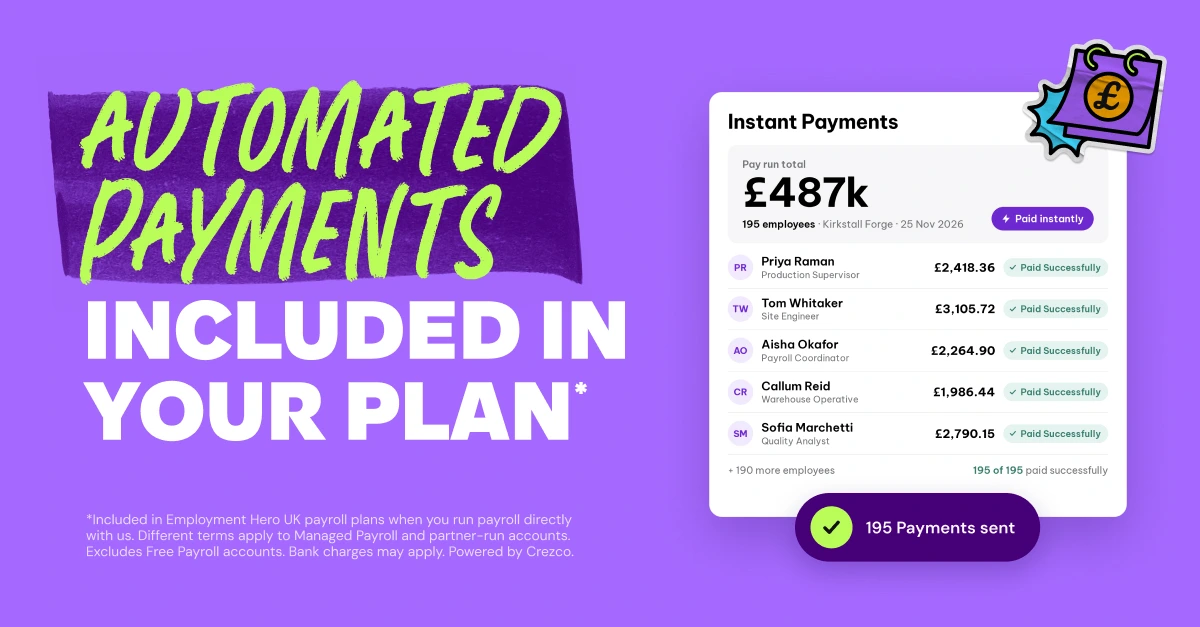 Read more: Employment Hero partners with Crezco to enable faster payroll payments for UK SMEs
Employment Hero partners with Crezco to enable faster payroll payments for UK SMEs
London, 10 November 2026: Employment Hero, the global AI-powered employment platform, has announced a new partnership with payments provider Crezco…
-
 Read more: The quiet signs you’re burning out at work (and what to do before it gets worse)
The quiet signs you’re burning out at work (and what to do before it gets worse)
Burnout builds quietly through signs that are easy to dismiss. Learn to recognise the early warnings and act before recovery…